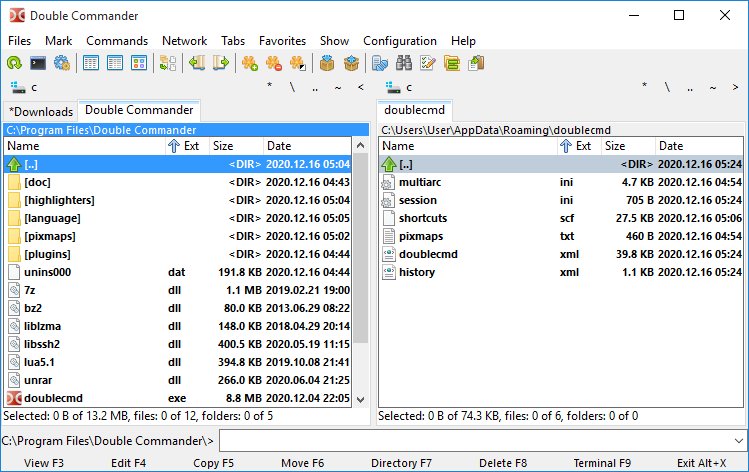
Double Commander File Manager Interface 🖥️
The Simplest Way: Context Menu 🖱️
For users who prefer using the mouse, this is the most intuitive method:
- 🖱️ Right-click on the blank space to the right of the file list.
- ✨ Select "New" -> "File".
- ✅ Advantage: Double Commander keeps the native system context menu, which means all your existing habits from Windows Explorer (like creating Office docs, text files, etc.) work seamlessly.
- 🚩 A small disappointment: Surprisingly, DC's top "File" menu bar doesn't have a built-in "Create File" option, so using the right-click or shortcuts is a better choice.
Fastest File Creation 📄
In Double Commander, you can quickly create and edit files with these steps:
- ⌨️ Use the shortcut Shift + F10 to bring up the creation dialog.
- ℹ️ Note: The dialog title might say "Open file," which is normal. DC enters edit mode immediately after creating the file.
- 📝 Enter the filename and confirm; the file will be created and opened automatically.
- ⚡ Quick Close: In the editor window, press Alt + Space to bring up the system menu, then press C to close it quickly.
- ✅ Returning to the file list, you'll find the newly created file remains selected.
- 🖱️ If you need to open it with a different program, press Shift + F10 (or right-click) again to show the menu.
Quick Folder Creation 📁
Creating folders is also highly efficient in Double Commander:
- ⌨️ Press the shortcut F7.
- 📂 Enter the folder name in the dialog box.
- ✔️ Click OK, and the folder is created instantly.
Advanced Method: Custom Toolbar 🛠️
If you prefer using the mouse or need deeper customization:
- 🔧 Custom Toolbar: You can right-click the toolbar to add new icons and set Action Commands for one-click file creation.
- 🧠 Technical Mindset: This approach requires a bit of technical thinking but can greatly enhance personal productivity.
- 🤖 AI Assistance: Modern AIs (like ChatGPT, Grok, Qwen, Doubao, DeepSeek) are excellent at handling such configuration questions; you can ask them how to write specific command scripts.
Continue reading related tutorials:
Double Commander Fast Copy Full Path Tutorial 🚀