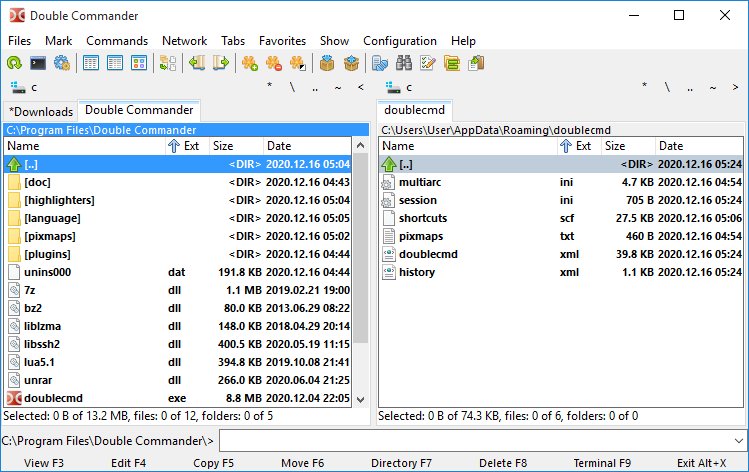
Double Commander File Manager Main Interface 🖥️
Copy Full Path of a Single File 📄
In Double Commander, copying a path is very simple. In the default configuration:
- 🖱️ Select the file you need to copy the path for.
- 🎯 Click the last icon in the top toolbar (Icon bar).
- ✅ The path is successfully copied to the clipboard, just paste it to get the full file path.
Copy Full Location of Multiple Files 📄📄
Need to get the paths of multiple files at once?
- 🪟 Windows Users: Hold the Ctrl key and click to select multiple files.
- 🍎 Mac Users: Replace the Ctrl key with the Command (⌘) key for multi-selection.
- 🖱️ Click the last icon in the top toolbar (the Copy Path icon).
- 📋 All selected file paths will be copied to the clipboard line by line, allowing you to quickly paste detailed full location info for multiple files.
Copy Current Folder Path 📁
If you need the full path of the current browsing directory:
- 📍 In the DC main interface, find the path bar below the top tabs.
- 🖱️ Click once with the right mouse button, and the path bar will enter edit mode.
- ⌨️ Use the shortcut Ctrl + C to copy the full folder path.
Quickly copying full paths of files and folders is an experience much better than the native Windows File Explorer. Double Commander can perfectly serve as the best alternative to Windows 'My Computer' or 'File Explorer'. It's free, open-source, and gives you complete control over your file management.