How to Compare the Content of Two PDF Documents Using PDF4QT Diff
For users who frequently handle legal contracts, architectural blueprints, or multi-version reports, PDF4QT Diff provides an efficient and precise graphical comparison solution.
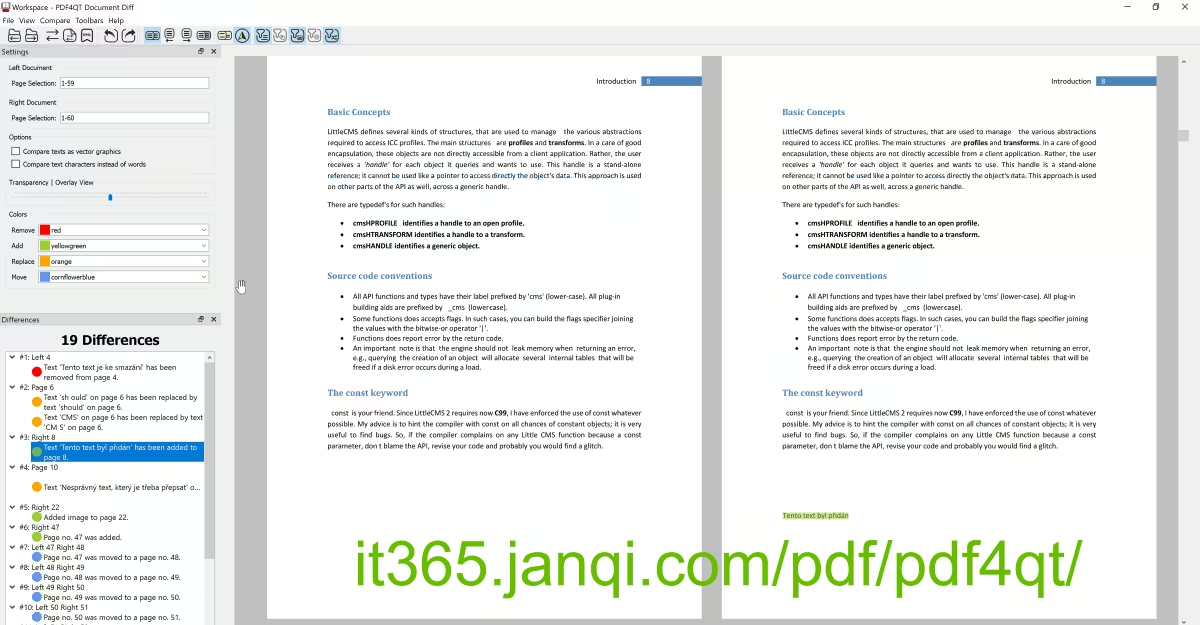
Tutorial for Comparing Two PDF Documents(side by side, synchronize scrolling 2 PDF)
Open the Comparison Tool (PDF4QT Diff)
In your system applications menu, select and open the standalone difference comparison application named PDF4QT Diff.
Load the 1st PDF Document
In the opened PDF4QT Diff window, a clear row of tool buttons is available below the menu bar.
Click the 1st button in the toolbar (usually bearing the number "1" or folder icon), and in the file selection dialog, choose the first PDF file to compare.
Load the 2nd PDF Document
Next, click the 2nd button in the toolbar (bearing the number "2" folder icon) to load the second PDF file (e.g., the revised new version of a contract or drawing).
Execute Comparison in One Click
Once both documents are imported, click the 3rd button on the toolbar (the "Start Comparison" button, typically represented by a compare, magnifying glass, or gear differences icon). The underlying comparison algorithm will instantly perform character-by-character, layer-by-layer, and pixel-level analysis of both files.
View Comparison Results & Synchronized Scrolling
Upon completion, the interface presents two large side-by-side windows displaying each document:
• Synchronized Side-by-Side Scrolling: A highly user-friendly core feature. When you scroll either the left or right window, the other window scrolls along in sync, keeping you aligned on the same paragraph or design area in both files.
• Difference Highlighting: The software uses eye-catching red/green background colors to mark modified, added, or deleted text, lines, and image regions on both sides. Any tiny revision is clear at a glance.