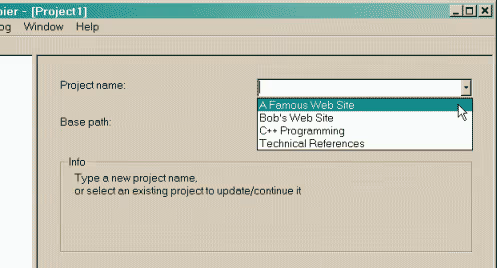
Initialize Project & Set Local Path
Launch the WinHTTrack software and click "Next" on the wizard welcome interface. Then you need to:
1. Enter a project name in New project name for easy management later.
2. Choose or enter a category in Project category (optional).
3. Select a local directory in Base path where the cloned website files will be saved.
Configure Mirroring Action & Enter Target URLs
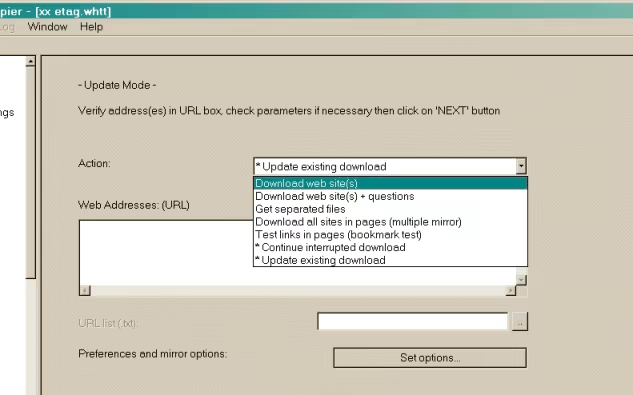
In the next window, set the mirroring action and input URLs:
1. Choose the copying method in the Action dropdown. Typically, the default Download website(s) is selected.
2. Input the homepage URLs of the target sites in the Web Addresses (URL) text box (you can input multiple URLs on separate lines to clone them simultaneously).
Configure Advanced Rules & Filters (Optional)
To prevent downloading unwanted huge files or external resources, click the Set options button to open advanced configuration:
1. Limits: Set maximum recursion depth (Max depth), maximum transfer size, or download rate limits.
2. Scan Rules: Use wildcard matching (e.g., -* to exclude all, +*.jpg to only download JPGs, or -*.zip to exclude ZIP files) to finely control download suffixes.
Start the Website Mirroring Process
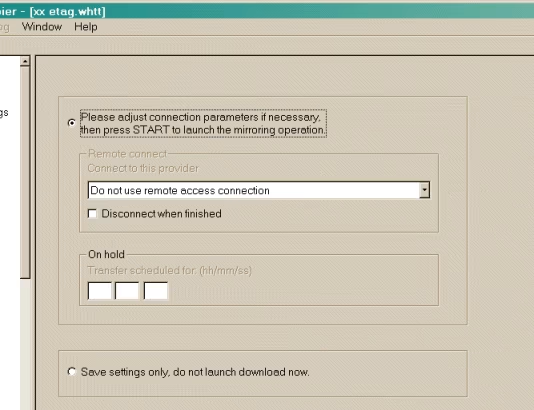
After completing all configurations, click "Next" until you reach the start confirmation interface. Click Finish to officially begin the cloning task.
The console will display download packet transfer statuses in real-time, showing requested URLs, current connection count, bytes downloaded, and estimated time remaining.
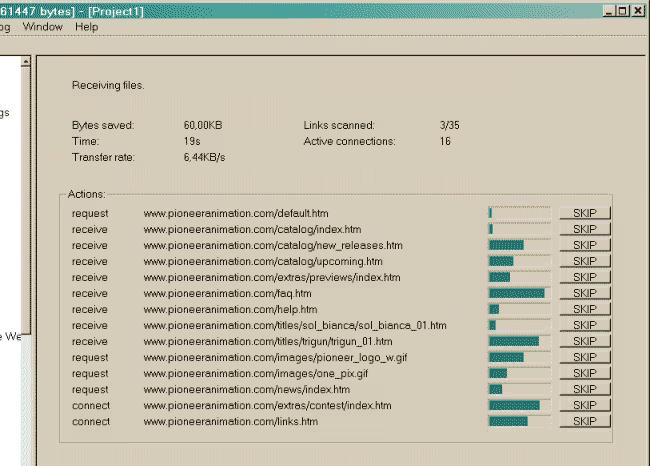
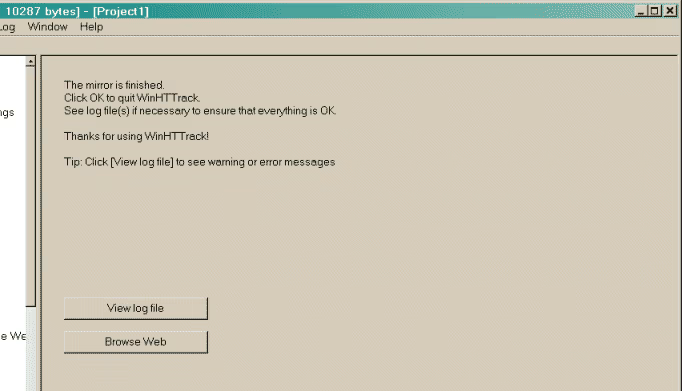
Mirroring Completed, Browse Offline locally
Once the screen displays Mirror finished, the cloning task is complete. You can now browse the site without an internet connection:
1. Click the Browse Mirrored Website button directly inside the WinHTTrack interface.
2. Or open the local directory you set in Step 1 and double-click index.html to open it in your default browser.
http://example.com/about.html to about.html or ../../about.html) so navigation links work offline seamlessly.